Code open-ends
In Questionnaire › Open ends, code with AI in the background, or create a codebook and assign codes using words and phrases, then review and analyse the saved codes.
A written answer is whatever the person typed. Coding gives each answer one or more codes, so that you can count them like any other question. There are two ways to code, and you can mix them. Code with AI drafts a codebook and codes every answer in the background, a question or all of them at once; you then correct what you disagree with. Or define the words and phrases for each code yourself: Velocity applies these rules to the answers, and you review the matches and correct or confirm them.
The synthetic brand tracker has no written answers, so this guide uses the Hearthline Buses rider survey instead: 1,600 riders scored their journey and said why. Its last question asks What is the main reason you gave that score?
Step 1: Questionnaire · Open ends
Open ends
Open ends, a tab in Questionnaire, is where open-ends are coded. The rail at the left lists every question answered in words, with how many people wrote an answer and how far its coding has got: Not coded, Coding … of … while it runs, or the number of codes and the share of answers coded. Choose a question there to code it in the tab. Code open-ends, in the details of a written question in Questions or Responses, opens the same place.
A written question's details, with the button that opens it in Open ends. Step 2: Open ends · OE1 verbatim
See the answers
The line at the top of the tab says where the question stands: before any code, how many people wrote an answer and how many left it blank. The answers fill the tab, 50 at a time, with the respondent's ID at the left, a pager, and search (/). At the right of the line is what to do next: Code with AI, or Write codes yourself.
Once a question has codes, the codebook is at the left, each code with its count and a short bar, and the answers are counted by state above them. Only the states with answers in them are shown:
- All: every nonblank written answer. Blanks are counted separately.
- To review: matched by a coding rule, not yet confirmed.
- Uncoded: no rule matches and no manual review has been saved. When you save, these answers count as Other.
- Assigned: codes saved by you or with AI. This says an assignment exists, not that a person reviewed an AI result. Inspect and change codes where needed.
- Blank: left empty. These stay missing in Analysis.
The codebook's name, at the top of its column, is the name the coded question takes; the question's name is offered.
Before any code: the answers, and Code with AI. Step 3: Open ends · Code with AI
Code with AI
Code with AI (on the Professional or Advanced plan, or during a trial) reads a question's answers, drafts a codebook from them and codes every answer. It is at the right of the tab's top line. Code all with AI, under the list in the rail, does this for every question not yet coded.
It sends the question, its codes if it has any, and the text of its open-ends, and nothing else from your file; Privacy says where they go.
Coding runs in the background. Two questions code at a time and the rest wait their turn; a question of about a thousand answers takes under a minute. In the rail each question's bar fills as codes arrive, a hundred answers at a time, and the chosen question shows its drafted codes and coded answers as they come. You can choose another question, or go on in Analysis or Report, while it works. The top line counts the answers coded so far; Stop, beside it, saves the codes that have arrived.
When a question is finished its codes are saved into the project, a message says so, and a chime sounds if you are in another window. The top line then reads the number of codes and 100% coded, with Analyse to open the coded question in Analysis.
Treat the result as a first pass, as you would a colleague's. The codebook lists each drafted code with its count and bar; choose one to see only its answers, and point at its name to read what it means. Rename or remove codes, and point at an answer to add or remove its codes, then Save codes. Renaming a code drops its drafted meaning, so the AI reads only your name the next time it codes.
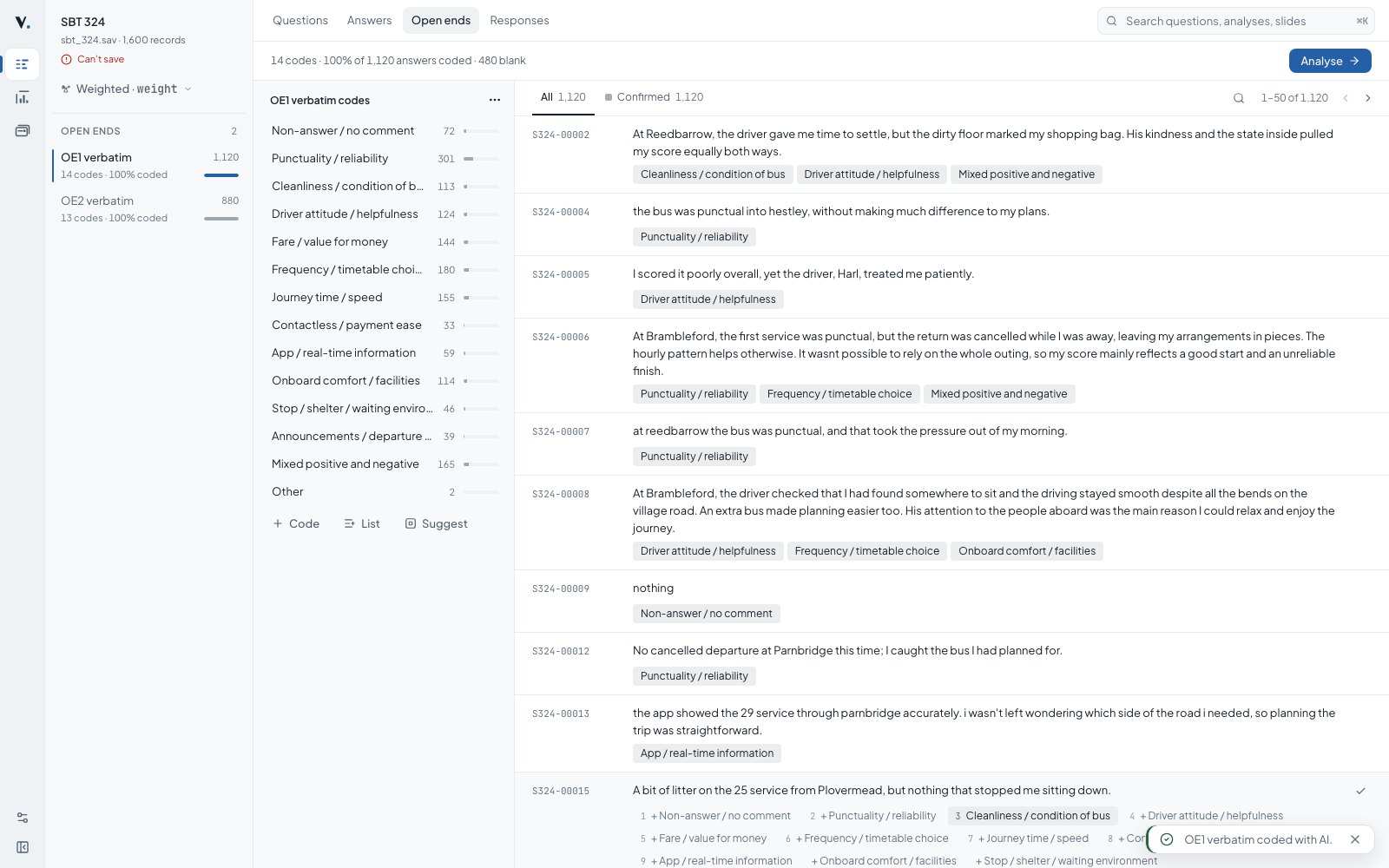
Two questions coding at once; the chosen one fills in as you watch. Step 4: Open ends · A respondent
Read who said it
Choose an answer to open that respondent's other answers in a panel at the right, in the questionnaire's order, with the written answer you chose marked. The arrows at its top step to the next or previous answer in the list.
Choose one of their answers, such as an age group or a region, to show only the written answers of people who gave it. The answer shows above the list beside search, with a cross to show everyone's answers again; the codes, states and search all work within it.
If a question already has codes, Code with AI codes with your codes every answer you have not coded yourself, and leaves your own coding as it is. Run it again after adding codes or answers; if some answers were not coded, the tab says how many, and running it again finishes them.
Check the codebook before you report. The AI codes only with the codes it is given, so when the codebook misses a theme, those answers can be put under the nearest code instead. A large Other, or a code that looks too big, is worth reading. AI coding shares your account's $25 monthly AI allowance (which resets on the 1st of the month across all AI features) and is capped at 200,000 answers per account per month.
A respondent's other answers, one of them narrowing the list. Step 5: Open ends · Add code
Write a code and its words
Choose Write codes yourself, then Add code; name it under Name this code, and type the words or phrases it looks for under + word or phrase, pressing Enter after each. Here Buses looks for bus and coach. Each word becomes a chip with a cross to remove it, and the code shows how many answers it matches: 402. In the answers the matching word is underlined and the code appears under the answer, so you see why it matched.
Ordinary coding rules match text without regard to capitalisation and can match part of a word: bus also matches buses. Phrases match the text as entered. Review matches for unintended meanings.
An answer can have more than one code. Add the next code the same way; Drivers looks for driver.
Buses: two words, 402 answers, each match underlined. Step 6: Open ends · Confirm codes
Confirm or correct an answer
A matching word may be used in a different sense. Read the answer, then choose the check mark that appears at its right to Confirm codes: your saved selection then overrides the rules for that answer. The filled check reads Reset to rules: choose it to use the rule matches again. Assigned counts saved assignments, and To review shows answers still coded only by rules. You can also tick or untick a code under an answer to change which codes it has.
Search (/) finds answers that contain a word, and choosing a code or a count shows only those answers.
Step 7: Open ends · Suggestions
Let Velocity suggest words
Suggest opens Suggestions, the words people typed most, each with its count and a cross to hide it. bus is typed in 400 answers and time in 300. Choose a word to add it to a code. Group related expressions is experimental: it runs a model on this computer to gather related words, and downloads about 46 MB the first time.
Suggestions are proposals. Nothing is coded until you add a word to a code.
Suggestions: the most typed words, with Buses and Drivers beside them. Step 8:
More from the codebook menu
Codebook actions (the three dots beside the codebook's name) holds:
- Code as brand mentions: for a question where people name brands.
- Add codes from a file…: Excel, CSV, a text list or a Velocity codebook.
- Add a NET: combine two or more codes into one row that counts each answer once.
- Number the codes, or Remove code numbers.
- Export codebook and Export coding review, as files.
Step 9: Open ends · Save and analyse
Save the codes
Once you change a code, the top line reads Unsaved changes until you save: the counts in the tab are a preview, and only saving changes the results. A draft is kept if you choose another question first. Save codes keeps the codebook and stays in the tab. Save and analyse saves it and opens the result in Analysis.
The codes become a new question under Derived variables, here Reasons for the score, beside the written question, whose answers are unchanged. In this example, the saved table has a base of 1,120, everyone who wrote an answer, weighted by a unit weight. Buses is 36%, Drivers 11% and Other 55%. Other holds the answers no code finds, so they stay in the base; if your codebook has its own code named Other, they join it. Blank answers stay missing. A large Other means there is more to code: open the question in Open ends again and read the Uncoded answers. Because an answer can have more than one code, the shares do not add to 100%. Use the new question like any other: compare by it, filter by it or put it in a report.
The coded question in Analysis.